Here is a brief overview of a CAD Manager position and the duties involved:
- Provide production CAD support
- Develop, implement and enforce CAD Standards
- Organize the CAD environment
- Supply technical support for all CAD software
- Provide support for plotting and electronic file submissions
- Interact on project standards coordination with clients
- Insure CAD vendor management
- Provide training and supervision of in-house CAD users
- Generate written technology evaluations for future software adoption
- Provide a budget for all CAD technology items
- Maintain CAD document archive and retrieval for projects
- Provide leadership and vision to the firm in the area of CAD
- Train in-house support staff
- Develop training budget and overall scope
- Customization of CAD Programs
- Maintain CAD Software inventory
- Strategic Planning
Please add to my list?

I have been getting questions related to the installation of the Express Tools in the 2006 products, well actually the lack of installation of the Express Tools Menu.
It does load automatically with the 2006 products but you may have to Load the CUI to get it to work. Here’s how…
Just try typing in EXPRESSTOOLS at the command line.
If the Express Tools menu still is not available on your pulldown or the toolbars are not to be found type in:
CUILOAD
Custom User Interface Load is a new function that replaces the MENULOAD command. In fact if you type MENULOAD it does a CUILOAD. Same dialog box.
The dialog box shows you the currently loaded functions, in my case ACAD and CUSTOM
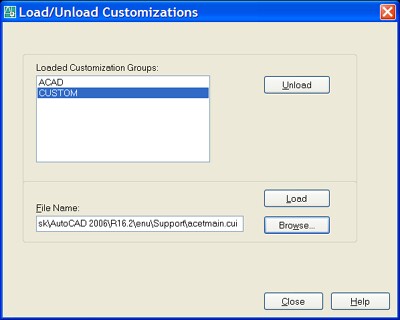
Click the Browse button and select a file calles “acetmain.cui”. This is the Express Tools CUI file (ACad Express Tools MAIN.cui). It should be under your Support folder. Click OK to accept. Now the Express Tools menu file should appear in under File Name. Not done yet…
Next click the Load button and the Express Tools should be on your pull down and the Toolbars should be available. It will also be listed in the Loaded Groups area also.
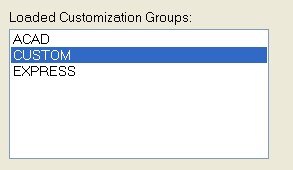
Now – Close the dialog box and get back to work
:>)
There is a newer form of installing software. I don’t know how long it has been available (let me know if you know). It is called Multi-seat Stand-Alone Licensing.
The multi-seat stand-alone license enables the purchaser to install, register, and activate an Autodesk products on several workstations using a single serial number. The mulitseat stand-alone license simplifies license management for sites that do not want to maintain a network license server. Just one serial number is required to install and activate multiple workstations.
It seems that this is the format of choice for subscription customers, at least in Autodesk’s mind. They seem to be shipping multi-seat stand-alone installs to subscription customers.Each seat of the multi-seat stand-alone license may be installed and activated on one additional workstation for each user, such as a home or remote workstation, provided that the user’s two workstations are not used concurrently, are used exclusively by the same person, and are owned or under the control of the license holder. See my blog on Home Use
Registration and Activation
If the workstation is connected to the Internet, the software automatically retrieves an activation code for each workstation when the product is started for the first time. Note that each installed workstation generates its own unique request code, and the corresponding unique activation code issued by Autodesk cannot be used on any other workstation.
Installation and Deployment
The multi-seat license means there’s only one serial number, one CD, and one manual to keep track of. You could use the Deployment wizard to simplify deployment by creating a server image that users can access to install the software on their workstation.
Be aware, although it’s possible to install each workstation individually from the CD, PAY ATENTION when you do it because any discrepancy in the information entered by users (like typos in the company name or mispellings of anykind) after the initial installation and registration has been completed will cause subsequent registrations to fail.
Objects are highlighted when the pickbox cursor rolls over them, providing a preview of which object will be selected when you click. Pretty cool stuff. You do have some options related to how this function works, or you can even turn it off.
In the Options dialog box under Selection is the following new area.
You can set it so that highlighting of objects is done only when a command is active or not. Seems like they could have handled this with one check box, but I am not the programmer so what do I know.
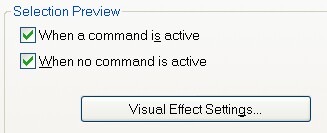
The Visual Effects Settings button does even more.
Additional Known Issues – Highlighted and (commented)…
- Windows Explorer: The new ‘Find within Explorer‘ feature (which is really cool) of AutoCAD 2006 does not support Architectural Desktop objects. (You can still use it to find AutoCAD objects inside ADT)
- Schedule External Drawing: Please notice that if you take advantage of the new relative path option in ADT 2006, prior releases will fail to recognize this. It is recommended not to use relative paths if drawings are to be used in prior versions of ADT.
- Section/Elevation Object Hatching: Solid hatch patterns used for Surface and Section hatching will not be displayed in 2d Section and Elevation objects. Instead, you may use another hatch pattern, such as Line, set at a dense hatch scale to simulate the solid hatch. This could cause slow performance depending on the amount of hatching required.
- Merge Common Materials: Merge Common Materials may fail to work in Sections and Elevations where a Slab Material is merged with other Object Materials. To workaround this issue, disable Merge Common Materials for the Slabs and use Edit Linework to remove lines between Slabs and other Objects.
- Smart Blocks: It is not recommended to use ADT objects in Smart Blocks, nor to edit blocks containing ADT objects with the Smart Block Editor (BEDIT). Doing so can cause unexpected results.
- Database field codes and Relative path option in a project standards environment: If you are using Database field codes in a Property Set Definition in a project standards drawing, it is not recommended to use Relative path option when creating the database link. You will observe problems resolving the correct path to the database.
Way back when… Microstation started letting people legally take home a copy of Microstation so that folks could learn the tool. Autodesk responded in kind and allowed users to have a copy at work and one at home. I am talking about legal copies (not the software that you got from your brother in law that you installed for “just fooling around”).
Well times have changed a little over the years. One change is that AutoCAD installs require “Verification” and “Registration and Activation”. This means that the installation process first Verifies your serial number and then Registers it to the machine it is installed on and Activates the software. If you have installed the product, you know the drill.
By doing this Autodesk has reduced pirated software and sold more legal copies. Something I applaud – I don’t like folks using illegal software to make money.
Here is the wording of the software license agreement related to multiple installs… (you agreed to this when you installed the software)
=======
3.1.2 Additional Installation. Except with regard to Educational Institutional, Student and Evaluation Versions only, You may Install and Access a second copy of the Software on the hard disk of a second Computer owned by You or under Your control provided that:
(i) the original and second copies are used only by the same person;
(ii) the second copy is Installed and Accessed only on either (a) with respect to Network Versions, a redundant server that makes the Software available for use only when Your primary server on which the active Software copy is Installed becomes inoperable, or (b) a notebook computer or other non-server computer away from Your usual work location for the purpose of enabling You to perform work while away from Your usual work location;
(iii) only one of the Software copies is Accessed at any one time; and
(iv) both copies of the Software are Installed and Accessed exclusively with the copy protection device (if any) supplied with the Software.
=====
This all sounds good – except… “second Computer owned by You or under Your control.” So if your company owns the software and the first computer – but your User owns their home computer (the second computer) – that would violate the letter of the license. Technically both machines must be owned by the same entity. Hmmm…
I am sure that Autodesk will not hunt you down (unless someone starts making loads of cash from their home based business with your company assets)
The above relates to standalone versions. What about Network copies?
The concept is that you should not allow more installs of home use than the total number of legal seats you own. So let say you have 25 licenses being managed by FlexLM on your LAN or WAN. You have it installed on 35 local machines in the office and it is limited to running 25 at any one time. You can only have 25 home use licenses – not 35.
Let’s think about what this means. Do the right thing. Are you legit? Are you striving to control the software assets that your firm owns? Don’t let home use get out of hand at your company.
A few notes about the upcoming API in Revit
ADN members and developers can soon add functions to Revit because there will be a new API (many have been asking for this feature).
Here are some of the things you can do…
You can now develop code to query, extract and modify existing items in a Revit model. This means that you can extract data from the model and place it in an Excel file. You can modify that data and push it back into the model.
You CANNOT add new items
You CANNOT customize the drawing interface
If you add a tool – it is placed under the Tools pulldown in a flyout for External Tools.
So a little but not a lot… I am sure that you bit shifters can get really creative (even when the sandbox seems so small)
Highligted and edited from the Readme file…
VIZ Render
• Link to VIZ Render. It is possible for Architectural Desktop to Link to VIZ Render while VIZ Render is otherwise occupied, such as rendering. This can result in an Application Error and loss of data from Architectural Desktop and/or VIZ Render. It is recommended that data not be pushed from Architectural Desktop to VIZ Render while VIZ Render is otherwise occupied.
• User content paths are dependant on first user run. If the Administrator is the first user to run Architectural Desktop, then some VIZ Render data paths will be set to look to different directories than if a user has first run. Path locations can be verified in the Configure paths dialog.
• In the Tool Palettes page of the Customize User Interface dialog, deleting a palette in the same dialog instance of the Customize User Interface dialog will delete any new Groups created.
• Substitution Manager. Substituting an item from an external reference of a drawing linked into VIZ Render will replace the whole external reference.
• 3rd Party Plugins. Plugins created for previous versions of VIZ Render may not function properly in VIZ Render 2006.
• The Properties of the last material i-dropped from the Render Material Catalog of the Content Browser are unavailable. The workaround is to drop one additional material and delete it. This refreshes the Scene – Unused palette to recognize the one you want. This does not affect materials directly i-dropped from the Render Material Catalog onto an object in the scene.
Project Standards
• If you have Windows XP SP2 installed, Audit reports may appear not to function properly. In order to view the Audit reports associated with Project Standards as they are intended to be used, you must change the settings via the Information Bar at the top of the Internet Explorer page. Right click on the Information Bar and choose Allow Blocked Content. By doing this, you will have access to the additional functionality via the radio buttons. For additional information about this setting for Internet Explorer, please consult Microsoft’s Help system.
Highlighted for quick reading…
Drawing Management
• New Project features in ADT 2006, for new projects and updated projects, will be lost if the Project Properties or Project Sheet Set are modified in previous versions of ADT. For example, this includes but is not limited to, the use of Relative Paths in ADT 2006.
• You may encounter missing buttons on the Configure Project Standards dialog. The only line of NVIDIA cards that successfully handle cad graphics are the Quadro line. Problems such as missing buttons in dialogs are known to occur with the NVIDIA GeForce4 4200 Go, for example.
• If you add a callout or other annotation to a manually created Named View in a view drawing & drop into a sheet file, those objects will be frozen in the current viewport. Thawing the layers in the sheet’s viewport will display your missing layers. You will not see this issue if you create the model space view from Project Navigator.
Layer Manager
• After a layer is deleted, you must OK from the Layer Manager before you can create a new layer of the same name.
• Creating New Layer From Standard in Layer Manager switches to “All Used” layer filter.
• Restoring a Layer Snapshot will not change the Lineweight, Plot Style or Plot (Yes/No) settings.
3D DWF
• Some double-byte characters will not display correctly in 3D DWF files.
 Loading ...