I know you never read the Readme file. Here is part of what it says.
Working with Previous Versions
- Using the new Display Themes object will create proxy objects when opened in previous versions of Architectural Desktop.
- The new Gross and Usable profiles for spaces are not supported in previous releases. Enabling and using this feature in Architectural Desktop 2006 will result in spaces only displaying the Net boundary in previous versions, as this was all that was available in previous versions.
- The new mask option for Break Mark Tool is not supported in previous releases. Using this feature in Architectural Desktop 2006 will result in Break marks only displaying the cut line and not the masked area in previous versions of Architectural Desktop.
- An additional display representation was added in ADT 2006: “Anchor Extended Tag to Entity” for schedule tags using the constrain option. Since this display representation is not present in prior versions of ADT, the representation will show up as proxy in these versions.
- Uninstall of ADT 2004 after ADT 2006 has been installed will break Tool Palettes in this version. Running a Repair Registry will restore proper operation.
- Database Field Codes values are cached but will not update in previous versions of ADT or AutoCAD.

I just installed my DVD copy of ADT 2006. It went fairly smooth. I believe it ships on DVD by default. If you want the CD Install (4 CD’s), you have to request it. It is free but you have to request it. Go to www.autodeskmediarequest.com. I appreciate getting the DVD. I would not want to be swapping DVD’s during the install (annoying).
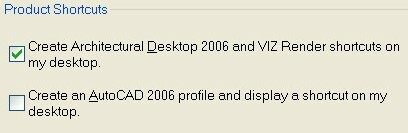
Another tip. You can have the install automatically create an AutoCAD profile and shortcut on your desktop along side the ADT shortcut. It makes the interface look just like vanilla AutoCAD. Clink on the AutoCAD icon and you get just AutoCAD. Click on the ADT icon and you get ADT. Nice touch.
Ever get a file that uses STB and you use CTB? or vise versa
CONVERTPSTYLES converts a currently open drawing from color-dependent plot styles to named plot styles, or from named plot styles to color-dependent plot styles, depending on which plot style method the drawing was created and saved with.
Converting Drawings from Color-Dependent to Named Plot Styles
A dialog box advises you to convert the drawing’s plot style tables before converting the drawing. You can convert the color-dependent plot style tables assigned to the drawing to named plot style tables using CONVERTCTB.
The Select File dialog box is displayed, where you select the named plot style table file to attach to the converted drawing.
CONVERTPSTYLES requires you to select a named plot style table that was converted using CONVERTCTB or created from a PC2 or PCP file. Normally you should pick the named plot style table that was converted from the color-dependent plot style table that in use.
CONVERTPSTYLES attaches the selected named plot style table to model space and to all layouts. Drawing layers are each assigned a named plot style (from the converted plot style table) that has the same plot properties that their color-dependent plot style had. Drawing objects that had the same color-dependent plot style as their layer are assigned the named plot style BYLAYER. Drawing objects that had a color-dependent plot style that was different from their layer are assigned a named plot style that has the same properties that their color-dependent plot style was.
After a drawing is converted to named plot styles, you can change the named plot style table assignment or assign other named plot styles tables to model space or layouts. You can also assign individual plot styles to drawing objects (a dangerous idea?).
Converting Drawings from Named to Color-Dependent Plot Styles
A dialog box advises you that the named plot styles attached to objects and named plot style tables attached to model space and layouts will be detached.
After a drawing is converted to color-dependent plot styles, you can assign a color-dependent plot style table. Plot styles will be applied by color.
The gap is widening between LT and full AutoCAD. LT may still fill a niche in your software tool belt, but it is getting harder to lock a person into the limitations of LT. Many casual users might benefit from the easy access to DWG files that LT provides, but those who need to create and be productive may soon decide that LT is not the tool for them.
Let me know what you think after reading the full story…
Most of us have dealt with Users who are not fully disclosing what may have caused that Standards violation. They are not forthcoming with information related to what happen before it “broke all by itself”.
Whether it’s your users, your boss, or your IT guy, it’s possible to determine if that person is lying to you just by carefully watching for clues.
According to Sheri and Bob Stritof, authors of “Your Guide to Marriage” on About.com, there are specific verbal and nonverbal clues we all give when we tell a fib. While few people would exhibit all of these, it’s the rare person who can tell a lie and not exhibit some of them!
So here is the list that the Stritof’s compiled. It can apply to your users also.
1. Touching the chin or rubbing the brow
2. Crossed arms or legs
3. Playing with hair
4. A line of perspiration on the brow if it isn’t a warm day
5. Saying “no” several times
6. Continually denying accusations
7. Being extremely defensive
8. Providing more information and specifics than necessary
9. Inconsistencies in what is being shared
10. Body language and facial expressions don’t match what is being said such as saying “no,” but nodding the head up and down
11. Smugness
12. Placing a barrier, such as a desk or chair, in front of self
13. Uncommon calmness
14. Unwillingness to stay focused during conversation
15. Being hesitant
16. Slouching posture
17. Rigidity or fidgeting
18. Differing behaviors; not acting in a usual fashion
19. Unnatural or limited arm and hand movements
20. Partial shrug
21. Lack of finger pointing
22. Unusual voice fluctuations, word choice, sentence structure
23. Stalling the conversation by repetitive use of pauses and comments like “um” or “you know”
24. Lack of use of contractions; prefers emphasizing “not” when talking
25. Avoidance of eye contact, eyes glancing to the right, staring past you, or turning away from you while talking
The Stritofs note that it is quite possible to mistake nervousness or distraction for lying or for misreading or mislabeling your spouse’s behaviors.
Not new but very useful…
The Product Manager searches a network and reports information about each Autodesk product installed, including programs, service packs, extensions, and object enablers. You can save the results of the search in a file for use in a spreadsheet or database application.
To install the utility, double-click setup.exe on the product CD. In the CD Browser, click the Network Deployment tab, and then click CAD Manager Control utility. After you install the files on your computer, the CAD Manager Control utility is accessible by clicking on Start > Program Files > Autodesk …
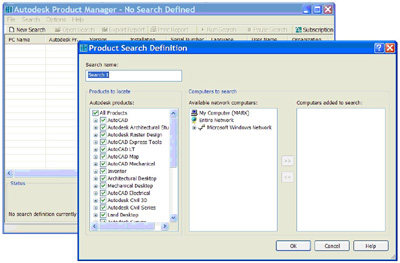
The Subscription Center provides Autodesk subscription members (who pay the fees for subscription) access to resources such as e-Learning (self-paced, interactive lessons) and web support (where you can submit technical questions online to Autodesk support staff).
You can determine whether users who are entitled to subscription resources can access them by using Help and clicking a Subscription resource. Users who do not have such access can still learn about subscription resources by using the same option on the Help menu.
Note: The CAD Manager Control utility can turn this feature off. You can access the utility on the Install tab of the Media Browser when you install 2006. If you, as CAD Manager, have turned it off then your users will have no access.
On January 16, 2006, Autodesk will no longer provide support for AutoCAD 2002-based products. You need to think about what that might mean to you.
On October 15, 2005, Autodesk will no longer provide support for Autodesk Inventor Series 7.
Product retirements are sometimes tough to swallow. It may mean that you no longer may get the support you are accustomed to getting, or that you have to start saving your dollars for the next upgrade.
Have you considered Subscription. It may be the way to go for those who need to maintain their investment in software.
So with these dates looming on the horizon, here is what you need to do:
1. Think through your approach to software ownership. Are you content with older releases? Do you have old software that could be used to upgrade you to the newest release?
2. Dig out those serial numbers and call your reseller. Find out what these retirement dates mean to your software life.
3. Plan for the next upgrade. Set aside some dollars to move to 2006 products. Calc the ROI of upgrades in terms of time saved, not dollars spent.
4. Start the process now.
More info from Autodesk…
Link
John Maxwell writes, “I am convinced that when people’s motives are pure and they genuinely desire to add value to others, they cannot help others without receiving some benefit. The return may be immediate, or it may take a long time, but it will occur. And when it does, the relationship begins to resonate with synergy. Invest in others, and like a boomerang, it will come back to you, sometimes in a most unexpected way.” (from Winning With People, by John Maxwell)
CAD Managers are givers. They give to others and often do not seem to get anything in return. But actually they do receive back from others. First, there is the joy of knowing that others have been enabled to advance in their careers. Second, that the company will produce a better product. Third, that the overall quality of CAD has been improved industry wide. So don’t hesitate to keep giving. You will get return on your investment.
NOTE: Hey CAD Users… make sure you thank your CAD Manager.
 Loading ...